


Generate images inside Claude
Add the AQEM AI connector to Claude — web, desktop, and Claude Code — and create, edit, and combine images straight from your chat. They spend the credits in your AQEM account and appear inline.
Connector URL
https://aqemai.com/api/mcpConnect in 3 steps
Open Claude customize
Add the AQEM connector
Connect & sign in
claude mcp add --transport http aqem https://aqemai.com/api/mcpThen run /mcp, authenticate with AQEM AI, and ask Claude to generate an image.
Install the AQEM Skills plugin
The plugin makes Claude smarter about model choice, prompt quality, and product shots — so you get better results with less effort.
https://github.com/aqem-ai/aqem-skillsWhat you can do
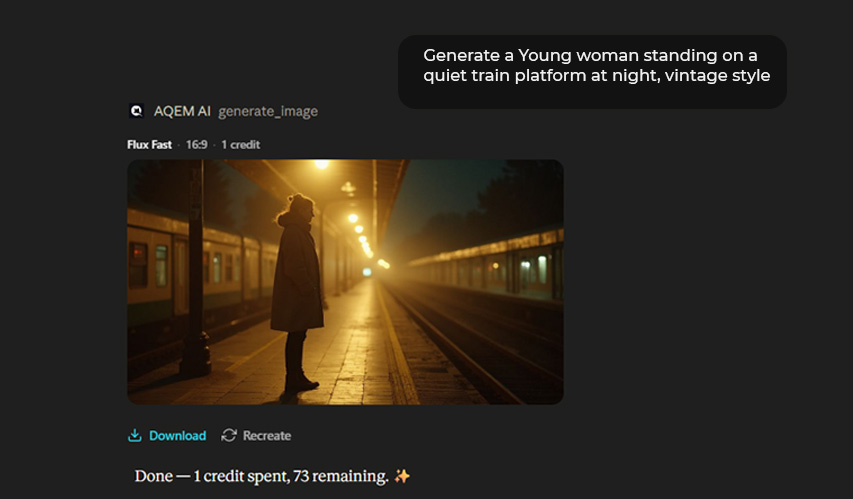
Describe it, Claude makes it
Ask in plain language — “a cinematic product shot of a coffee cup on marble.” AQEM picks the right model and renders it right inside the chat, then saves it to your Assets.
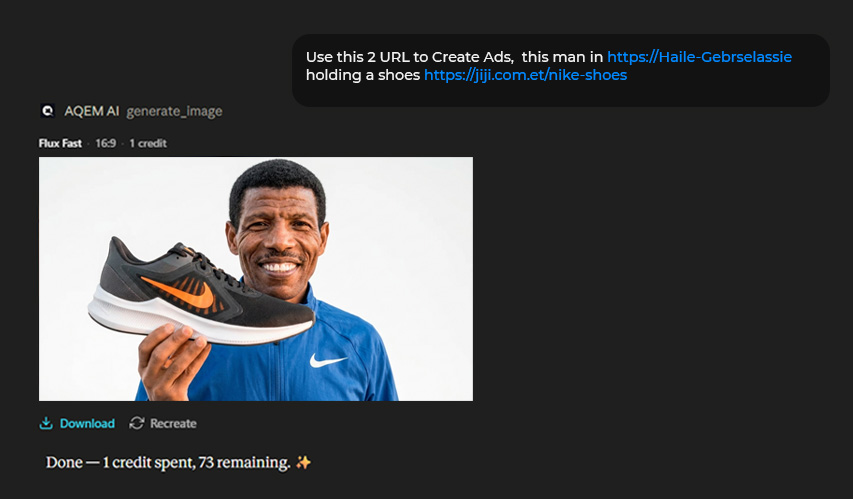
Turn any product URL into a visual
Paste a product link and ask for a polished marketing shot. AQEM pulls the product and generates a clean, on-brand visual — ready to download or refine.
Credits: each image spends the same credits as the AQEM studio (from 1 credit with flux-fast). Generations fail gracefully if your balance is low — top up anytime from your dashboard.